¶ Add/Edit Product
On this page you can add a new product or edit an existing one.
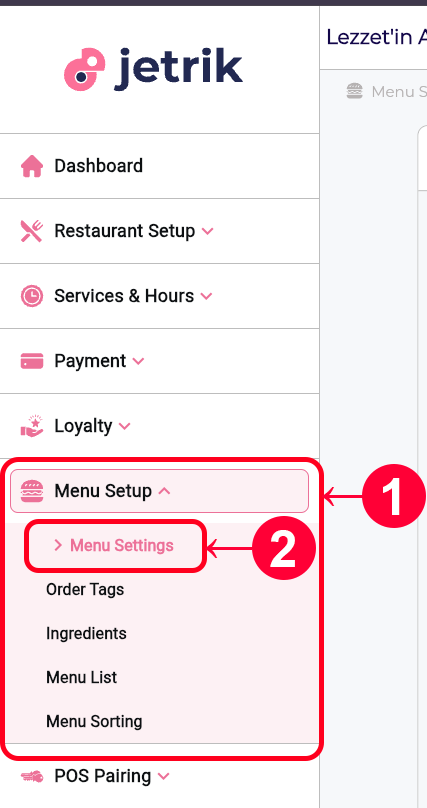
- Open the Menu Setup dropdown from the left sidebar.
- Click on the Menu Settings page.
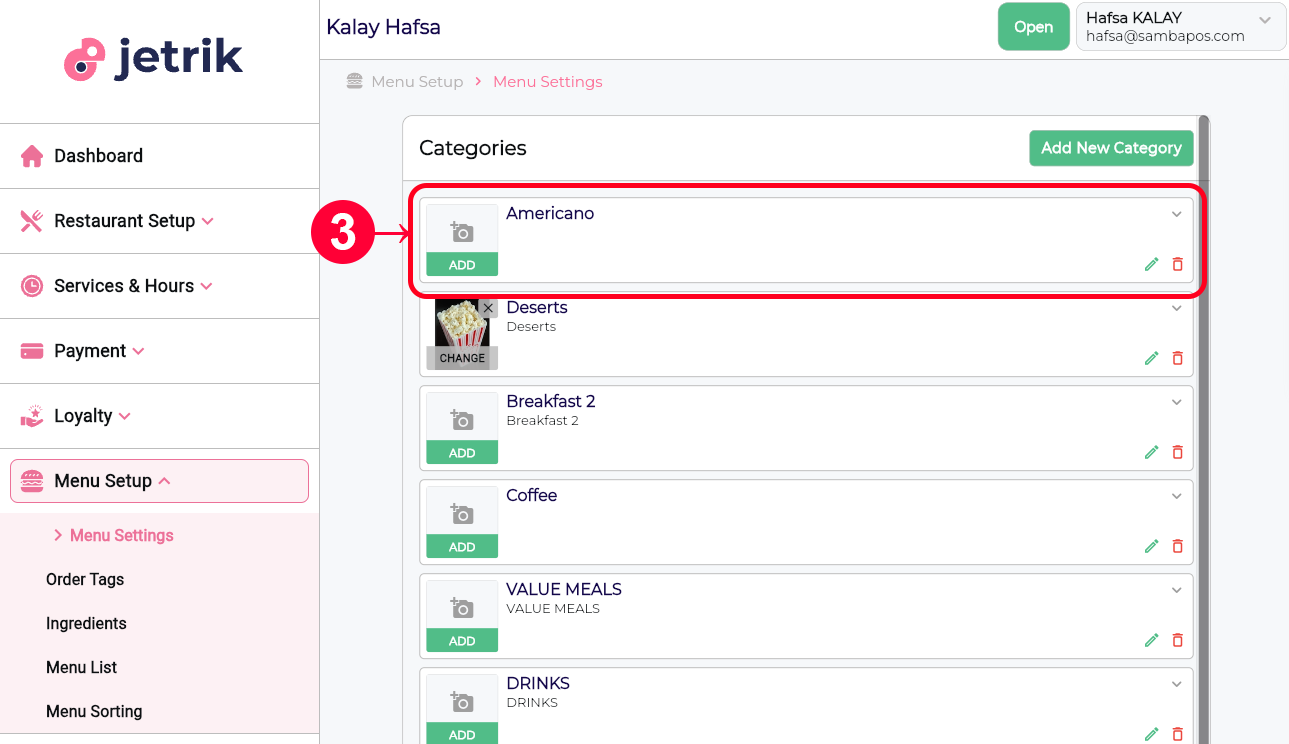
- You can click on any category to see the products belonging to that category and add new products.
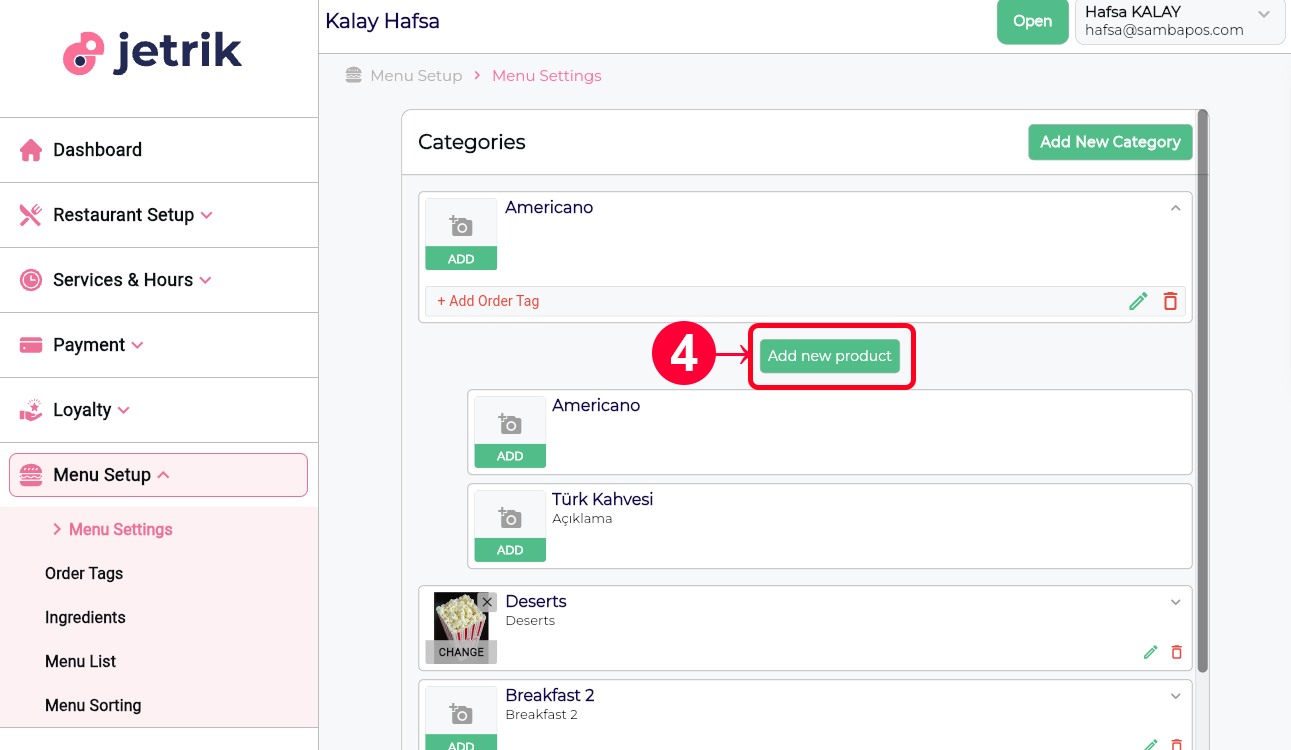
- After the category is opened, click the Add New Product button to open the product addition form.
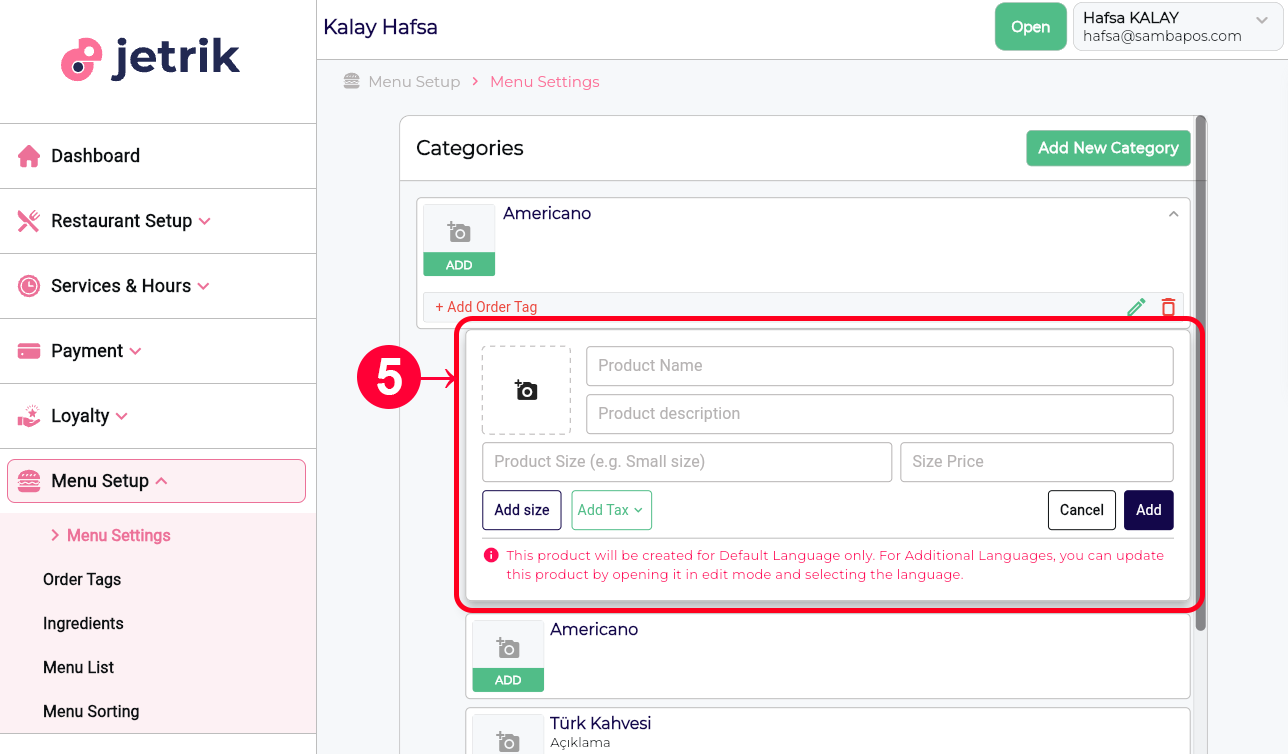
- In the Add Product Form, fill out the Product Image, Product Name, Product Description, Product Size, and Size Price fields. Then, click the Add button to create your new product. To create your product, you must enter the Product Name and at least one Product Size. To add multiple product sizes, click the Add Size button. If you want to add tax to the product, you can use the Add Tax dropdown menu to select one of the taxes you created on the Restaurant Setup > Taxes page. The other fields are optional.
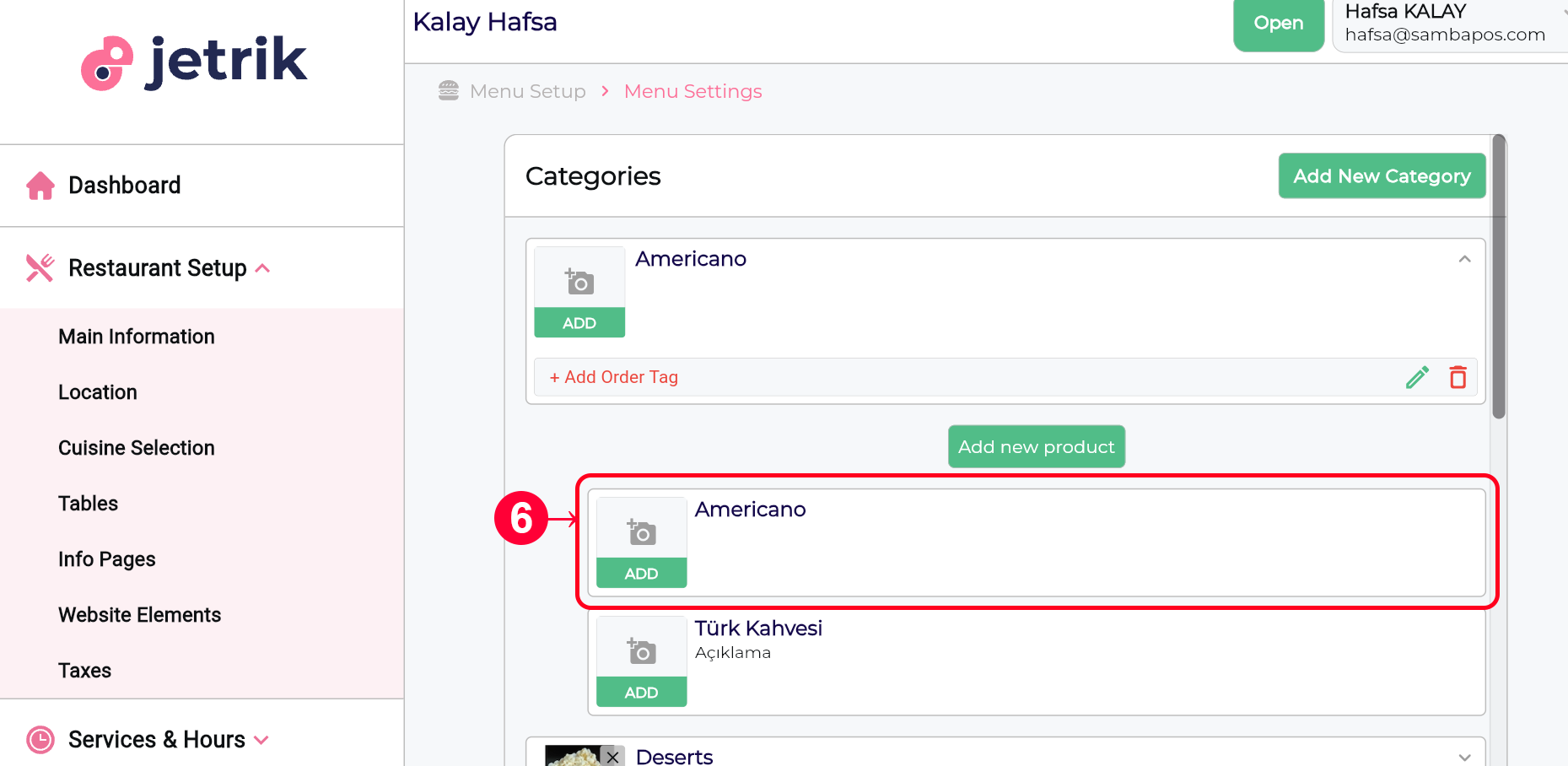
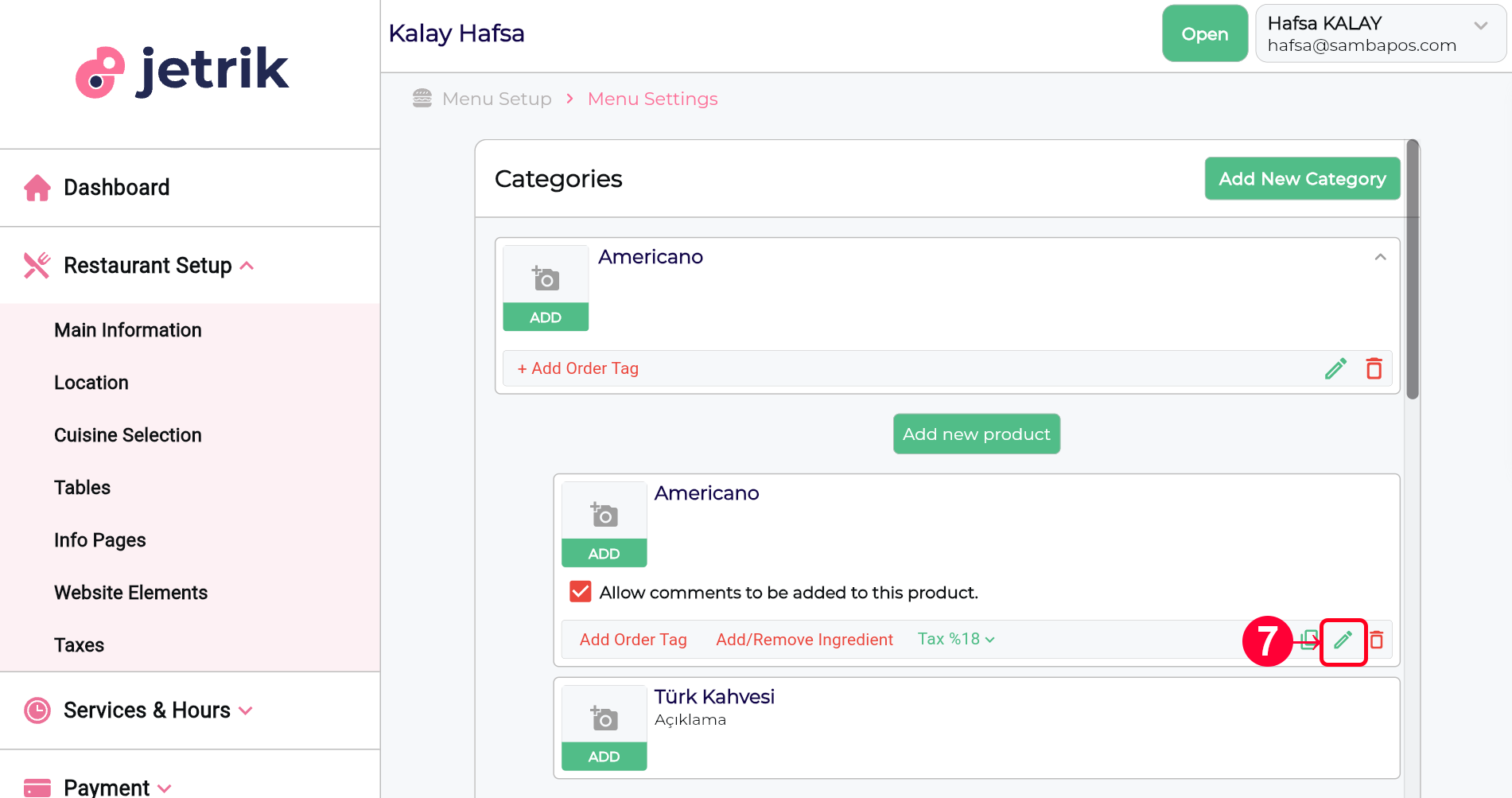
- To edit a product, click on any product and make its properties visible.
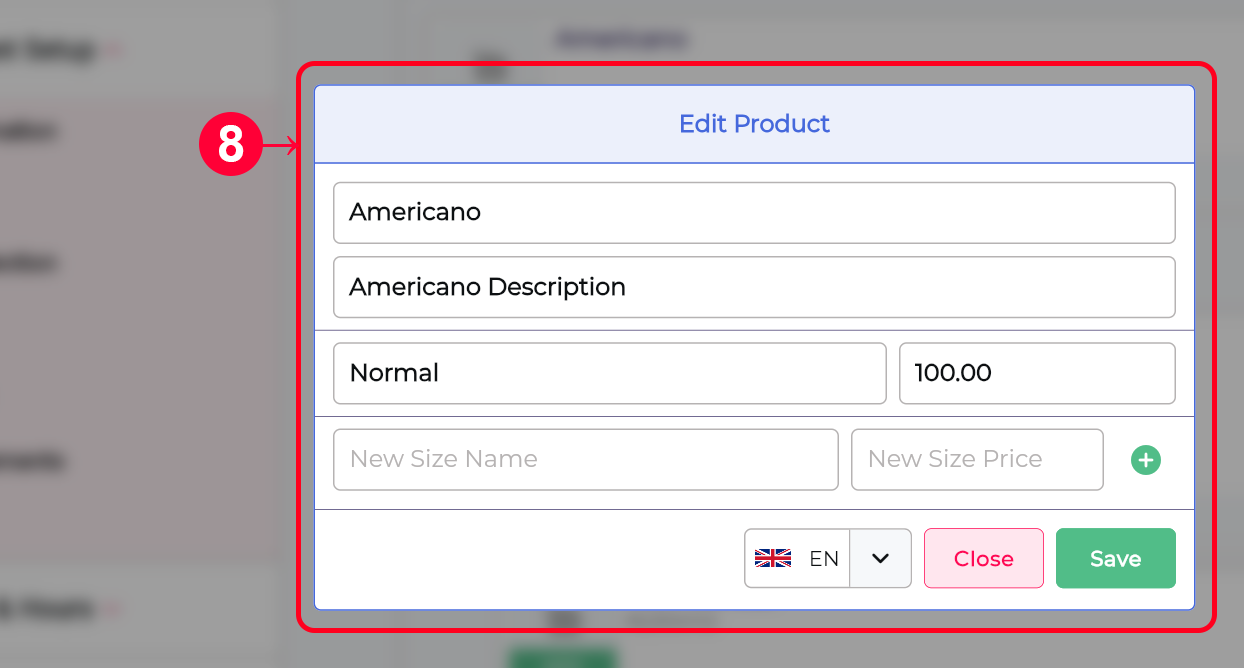
- Once the product properties are visible, click the Edit icon in the bottom right corner to open the Edit Product form.
- You can update your product by making changes to the Product Name, Product Description and Product Portion in the Edit Product form and clicking the Save button.
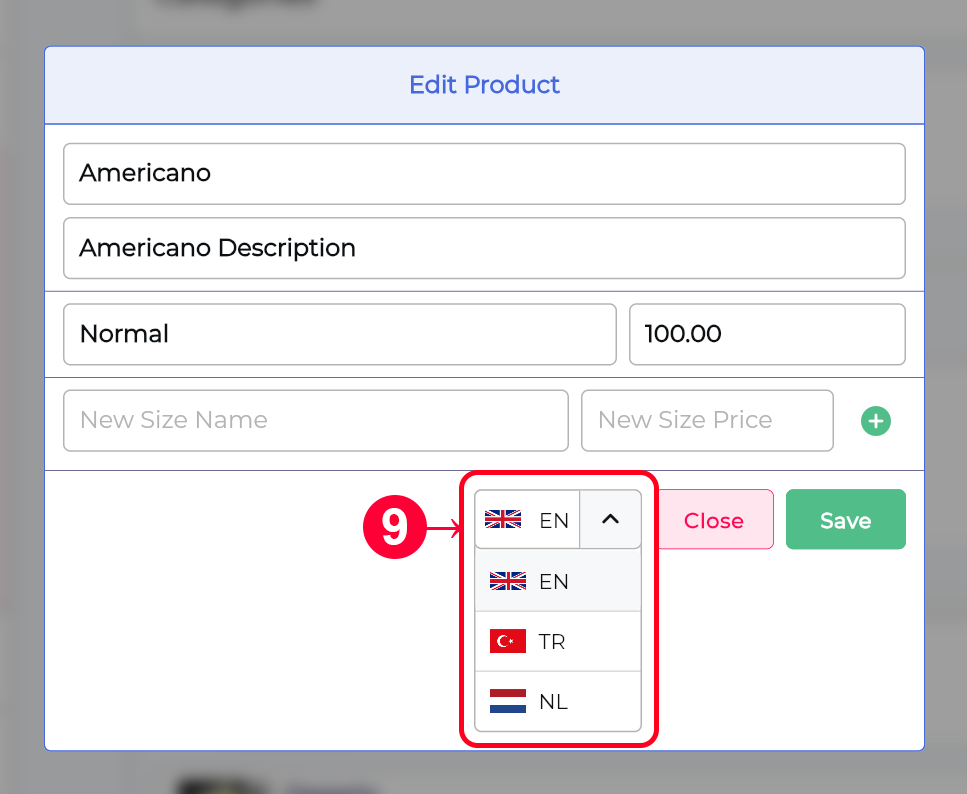
- If your restaurant supports multi-language, you can edit your product for different languages using the drop-down language menu.